
NAM Guide
Real hardware, as a file.
Neural Amp Modeler (NAM) learns how a specific piece of audio hardware responds to sound — its tone, its dynamics, the way it behaves when you drive it — and stores that behaviour as a model you can run in your DAW.
- 01Real hardwareA compressor, an EQ, a preamp, a tape machine.
- 02A CaptureThe unit’s behaviour, saved as a
.namfile. - 03A plug-inLoad the Capture in a NAM-compatible plug-in, like any other insert.
The easiest way to use NAM
Load a Capture. Build a chain.
TSC Rack 2 is our plug-in for NAM Captures: four slots in series, True Stereo, and a browser for your whole library — in any AU, VST3 or AAX host on macOS and Windows.

It loads standard .nam files — the included factory library, Tokyo Studio Capture’s Captures, and compatible Captures from other creators.
In TSC Rack 2
Loading Captures
-
Your library folder
Rack 2 reads Captures from one folder, and adds the included factory Captures there on first launch. Nothing in it is ever overwritten.
macOS
~/Music/Tokyo Studio Capture/TSCRack/Windows
%USERPROFILE%\Music\Tokyo Studio Capture\TSCRack\ -
Add Captures
Copy
.namfiles into that folder — sub-folders are fine. Already keep a collection elsewhere? Choose Set Root Folder… at the top of the browser to use it where it is; nothing is moved. -
Browse and load
Click a slot’s name (or EMPTY) to open the browser, open a category and product, and choose a Capture.
-
Or drop a file
Drag a
.namfile onto a slot. The ◀ ▶ arrows step through the other Captures in the same folder.

Stereo Captures
One Capture, or one for each channel.
A stereo unit is really two channels of slightly different electronics. Many TSC Captures are made channel by channel, as a pair of files ending in (CH1) and (CH2).
L/R Merge

One Capture → Left + Right
L/R Split

CH1 → Left CH2 → Right
- Click the L/R toggle at the top right of a slot to switch it to SPLIT.
- Load the CH1 file on the L row and the CH2 file on the R row. When you drag a file in, the row you drop it on decides the side.
- The slot then shows the pair under one name, with its CH1 and CH2 rows.
Input level
−18 dBFS
= 0 VU
Average (program) level · a reference, not a ceiling
A Capture of analog hardware responds to level the way the real unit does: feed it harder and it compresses and colours more. Tokyo Studio Capture’s Captures are calibrated for an average input around −18 dBFS.
- Watch
- Use the INPUT meter at the top of Rack 2 to see the level entering the rack.
- Aim
- During normal playback, aim for an average around −18 dBFS. On the slot VU meters, the vertical reference line marks the same operating level, 0 VU. Peaks can rise above it; they don’t need to stay below the line.
- Gain staging
- Each slot’s INPUT control sets how hard that Capture is driven. −18 dBFS / 0 VU is a reference point, not a ceiling.
- Level Match
- Works after the Capture to even out output-level differences. It doesn’t set or correct the level going into the Capture.


Real hardware. Captured.
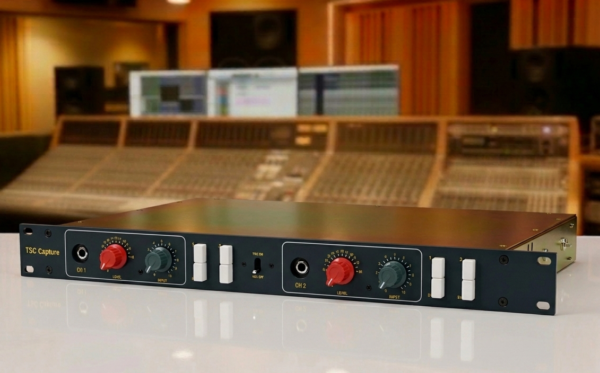
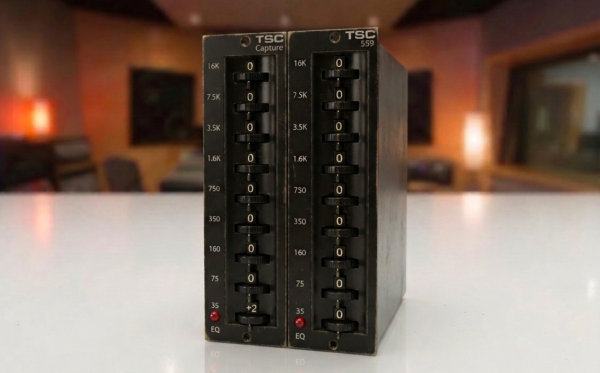
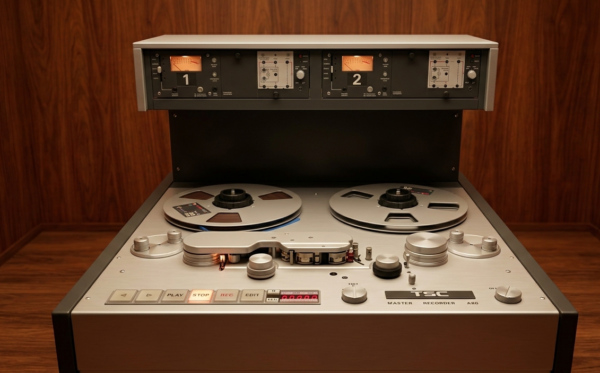
Every TSC Capture is made from real analog hardware — compressors, EQs, preamps, tape machines and saturation — and calibrated to keep the tone, dynamics and response of the original unit.
Explore NAM Captures →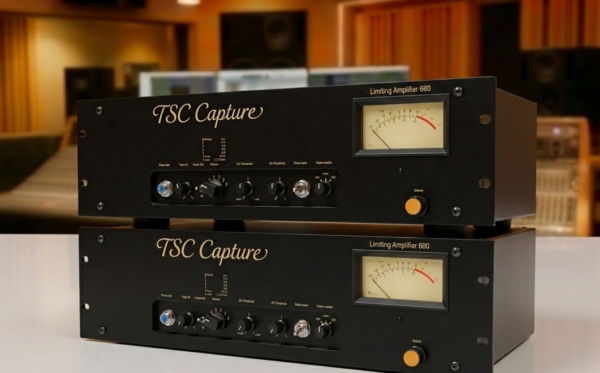
Questions
Do I need TSC Rack 2 to use NAM?
No. .nam is an open format, and the Neural Amp Modeler project offers its own free plug-in. TSC Rack 2 adds four slots, True Stereo loading of CH1/CH2 pairs and a browser for your library. Neural Amp Modeler project ↗
Do TSC Captures work in other NAM plug-ins?
Yes — they are standard .nam files. A CH1/CH2 stereo pair needs a separate Capture for each channel, which is what TSC Rack 2’s L/R SPLIT does in one slot.
Where is the full TSC Rack 2 manual?
The complete TSC Rack 2 User Manual (PDF) covers every control, the library, presets and installation. View User Manual ↗
Still need help? Contact us →